GuidesYour store
Add products
Add a physical product with photos, price, stock, options and specifications.
5 min read · Updated 8 November 2026
Open Products in the left menu and press Add product. The same form is used everywhere, including the first time you set up your store. Your agent answers buyers from what you enter here, so the more accurate it is, the better it sells.
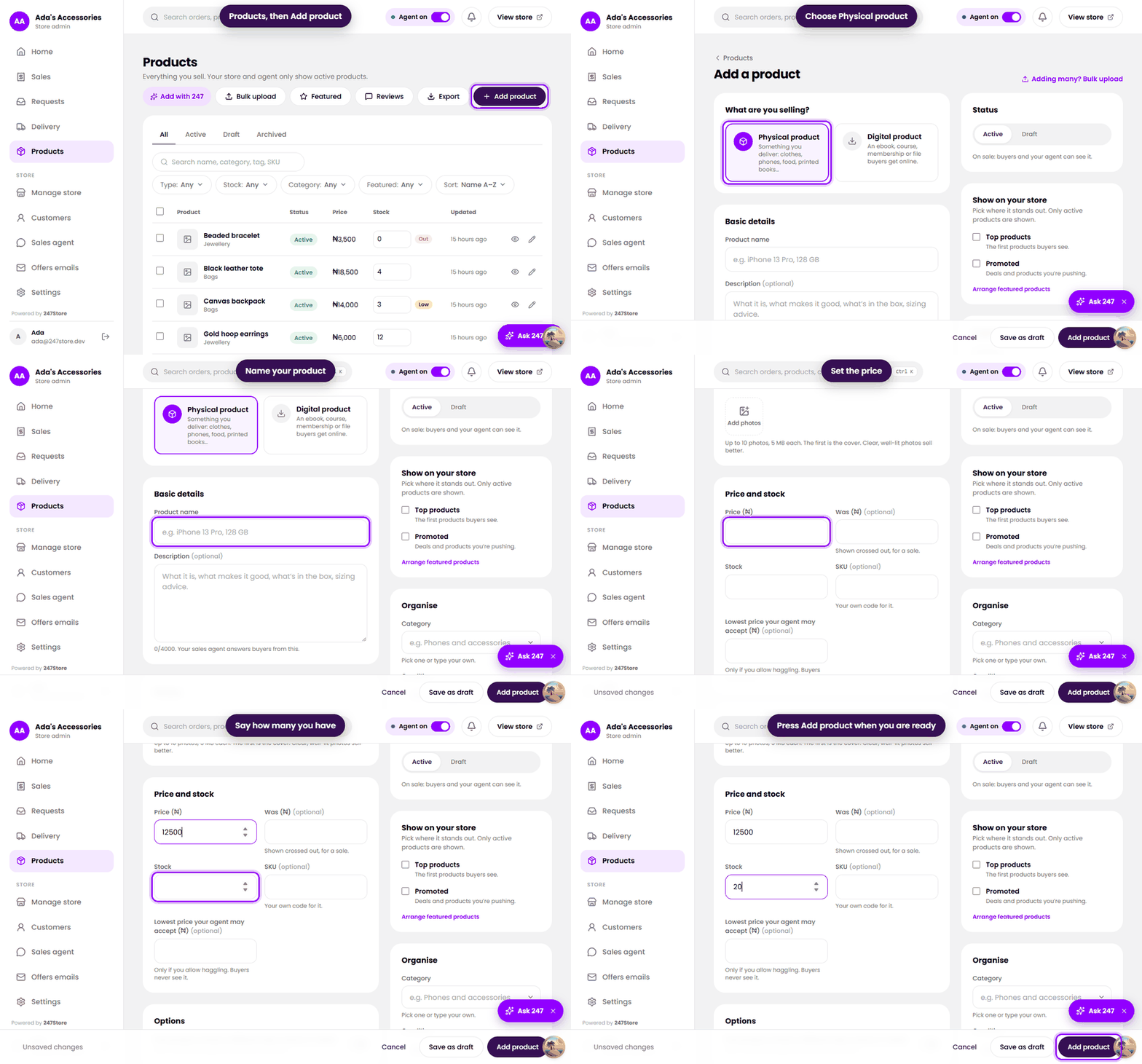
Add one product
- Press Add product and choose Physical product.
- Enter the Product name and an optional Description. Names must be different from each other in your store.
- Add Photos, up to 10 of up to 5 MB each. The first one is the cover.
- Enter the Price. Add a Was price to show a crossed-out sale price.
- Enter your Stock. When it reaches zero, buyers see the product as sold out and the agent stops offering it.
- Choose Active to show it now, or Draft to keep it hidden. Press Add product.
Options and specifications
- Options are for products that come in sizes, colours or styles. Each combination gets its own price and stock.
- Specifications are details buyers ask about, such as brand, model or condition. Pick a category to see suggested fields, or add your own detail. Your agent answers from these.
- Lowest price your agent may accept is only used if you allow haggling in the agent settings. Buyers never see it.
Add many at once
- Bulk upload takes a spreadsheet and shows you every row to review before anything is saved.
- Add with 247 lets you paste a price list or notes and turns them into products for you to review.
Manage your list
The Products page lists everything with status, price and stock. Filter by status (Active, Draft, Archived), type, stock level or category, and sort by name, price or date. Featured lets you choose products for the sections of your home page. Reviews shows what buyers wrote. Export downloads your list.
Read next
- Sell books, courses, memberships and downloadsDigital products reach buyers the moment they pay, with nothing to pack or ship.
- Set your delivery areas, fees and daysTell buyers where you deliver, what it costs and when to expect their order.
- Set up your sales agentChoose its name and tone, how it handles prices, and what it passes to you.
Still stuck? Write to support.