GuidesYour store
Design your store
Your logo, name, description, contact details and the look of your pages.
4 min read · Updated 8 November 2026
Manage store is where you control how your store looks and what buyers see. The left menu has it under STORE. The page opens with a preview of your store and your store address, and below it you edit your details.
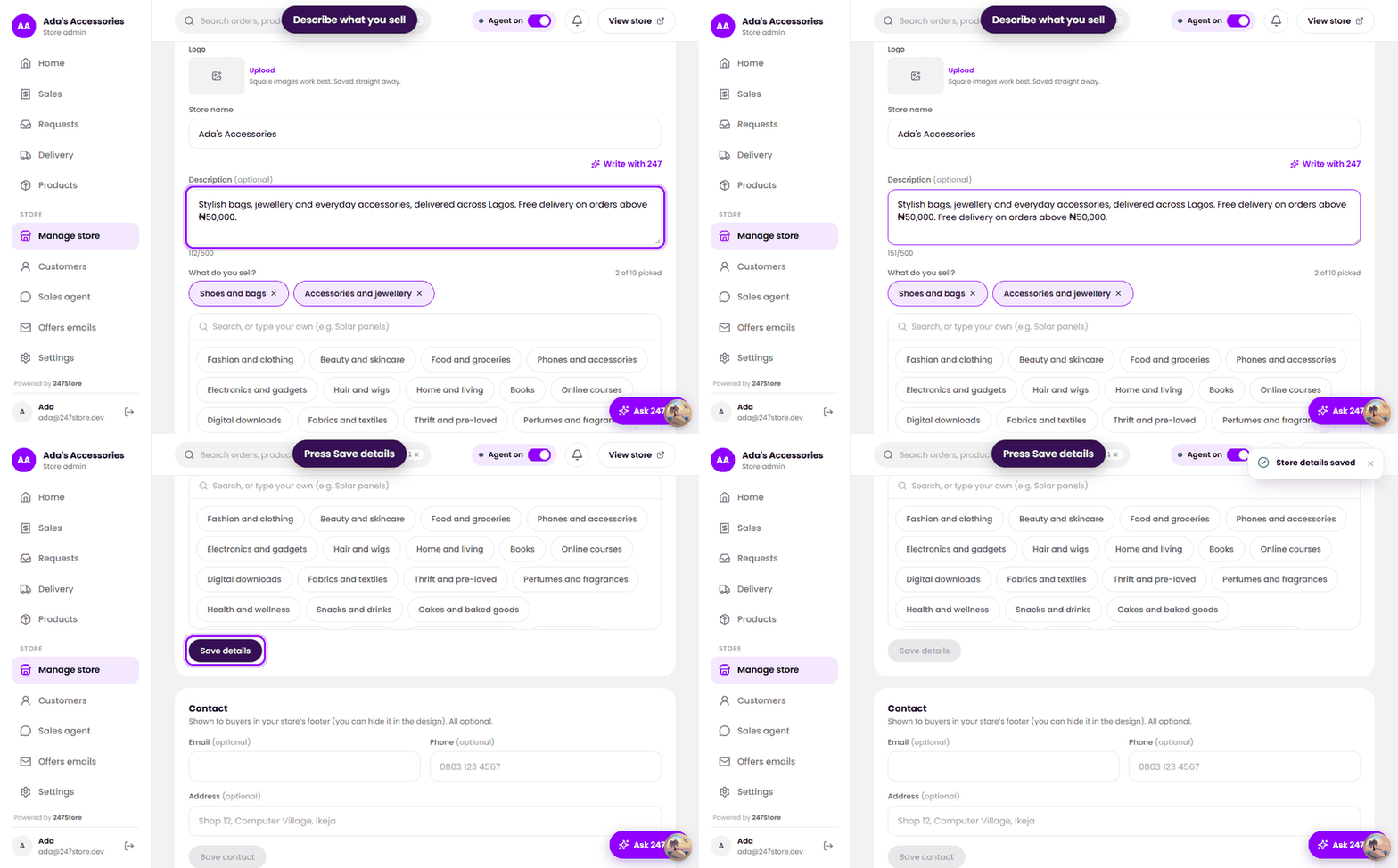
Your details
- Logo and store name. The name appears in your header and in search results and link previews.
- Description. A line or two about what you sell. Buyers see it, and your agent uses it.
- What do you sell? Pick up to ten categories, or type your own. Categories help your agent and your store suggest the right things.
- Contact. Email, phone and address shown in your store footer. All optional, and you can hide them in the design.
- Checkout. Allow guest checkout so buyers can pay with just an email, or turn it off so every buyer makes an account first.
The design
Press Design store to open the builder. Choose a template, set your brand colours, and arrange the sections of your home page, such as top products, new arrivals and categories. The preview shows how it looks on a phone and on a computer.
- Open Manage store and press Design store.
- Pick a template and your brand colours.
- Add, reorder or remove sections.
- Check the phone preview, then publish.
Publish and unpublish
A store must have at least one active product to publish. Unpublish takes the store offline for buyers without deleting anything. Your own address and design stay as they were.
Read next
Still stuck? Write to support.