GuidesYour store
Set your delivery areas, fees and days
Tell buyers where you deliver, what it costs and when to expect their order.
5 min read · Updated 8 November 2026
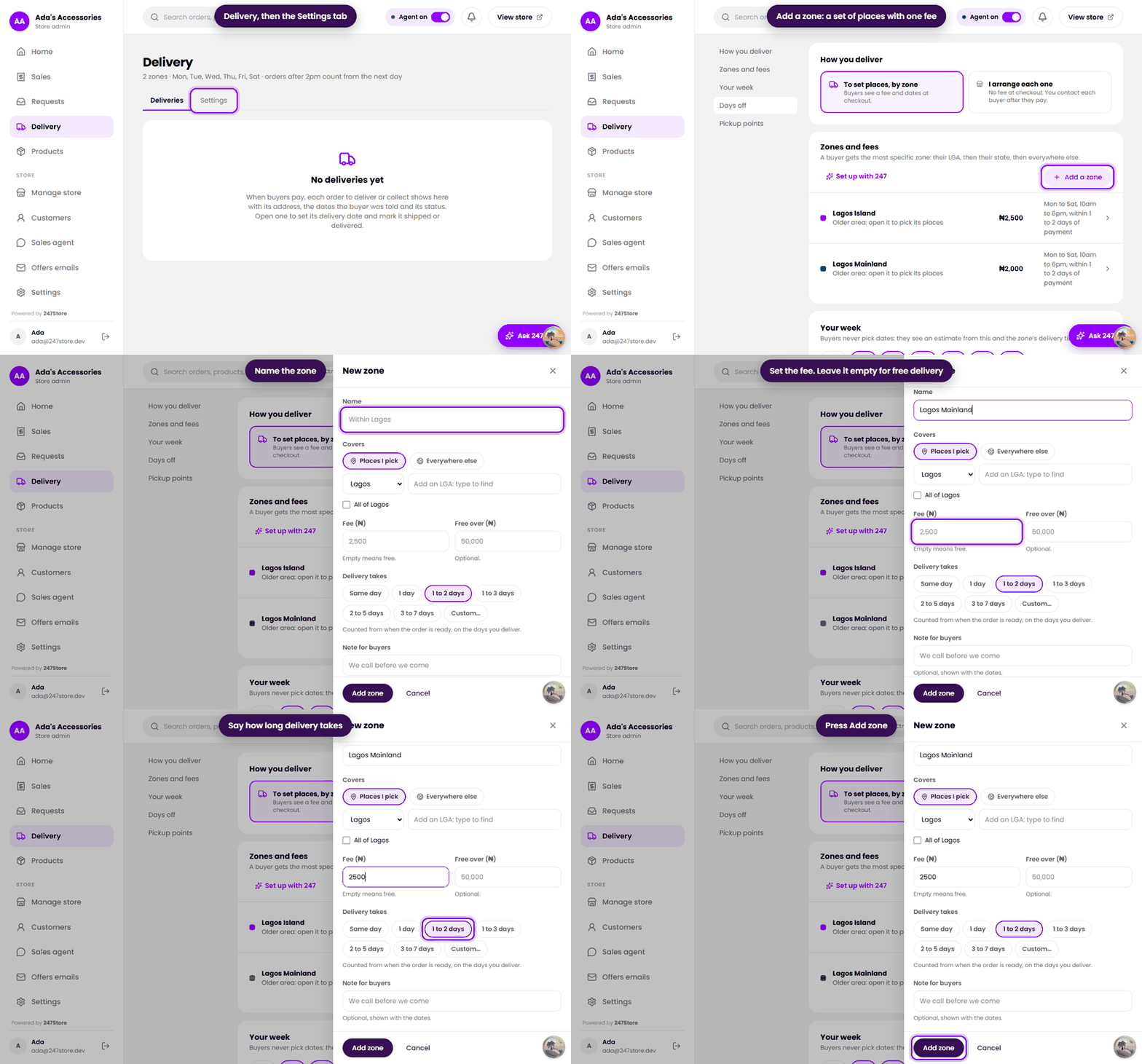
Open Delivery in the left menu. It has two tabs: Deliveries, the orders you still have to send or hand over, and Settings, where you set the rules. Your agent and the checkout both use these rules, so buyers are quoted the same fee and dates everywhere.
How you deliver
Start with the choice at the top of Settings:
- To set places, by zone. Buyers see a fee and dates at checkout. This is the best choice for most stores.
- I arrange each one. No fee at checkout. You contact each buyer after they pay to agree the delivery.
Zones and fees
A zone is a set of places you deliver to, with one fee and one delivery time. Press Add a zone (or Set up with 247 to have it started for you) and fill in:
- Name, for example Within Lagos.
- Covers. Choose Places I pick and tick the states, or the local areas inside a state, or choose Everywhere else for a catch-all zone.
- Fee (₦). Leave it empty for free delivery.
- Free over (₦). An order above this amount ships free. Optional.
- Delivery takes. Same day, 1 day, 1 to 2 days, and so on, or a custom range. It counts from when the order is ready, on the days you deliver.
- Note for buyers, shown with the dates. Optional.
Your week and days off
- Your week. Pick the days you deliver, and the hour after which paid orders count from the next day. Buyers never pick dates: they see an estimate built from this and the zone’s delivery time.
- Days off. Press Add days off for a holiday or a break. No deliveries are promised on those days.
- Pickup points. Press Add a pickup point if buyers can collect from a place of yours.
After an order is paid
Each paid order appears on the Deliveries tab with the address and the dates the buyer was told. Open one to set its delivery date and mark it shipped and then delivered. The buyer is emailed an update.
Read next
Still stuck? Write to support.